How to Install SSL on Cloudways (Free Let’s Encrypt Certificate)
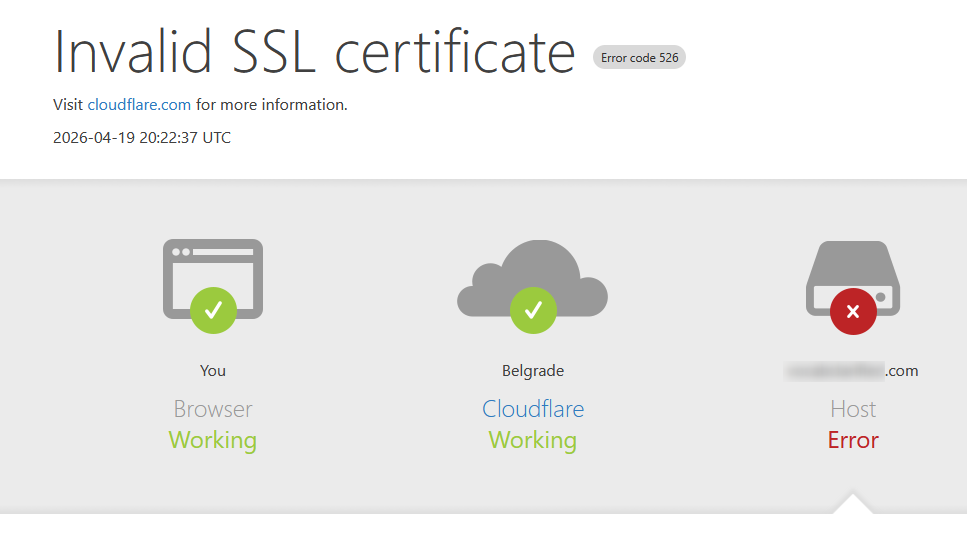
If your Cloudways site is showing “Not Secure” in the browser, or you’re getting SSL errors after connecting your domain – you need to install an SSL certificate.
Good news: Cloudways has Let’s Encrypt built right in – it’s free and takes about a minute.
Here’s exactly how.
What Is SSL and Why Do You Need It?
SSL (Secure Sockets Layer) is what puts the padlock in your browser’s address bar and makes your site load over HTTPS instead of HTTP. Without it:
- Visitors see a “Not Secure” warning in Chrome and other browsers
- Google treats your site as less trustworthy in search results
- If you’re using Cloudflare with Full (Strict) mode – which you should be – your site won’t load at all without a valid certificate on the server
Let’s Encrypt is a free, widely trusted certificate authority. Cloudways integrates it directly – no manual installation, no fiddling with files.
Before You Start
Make sure you’ve done these two things first – otherwise the certificate installation will fail:
- Your domain is added to Cloudways and set as Primary in Domain Management
- DNS is pointing to your server – your A record in Cloudflare should be live and propagated
If your domain isn’t connected yet, do that first. Let’s Encrypt needs to verify your domain actually points to your server before it’ll issue a certificate.
Quick Summary
| Step | What You’re Doing |
|---|---|
| 1. Open SSL Certificate in Cloudways | Application → SSL Certificate in left sidebar |
| 2. Select Let’s Encrypt | Default option in the dropdown |
| 3. Enter email + domains | Your domain, plus the www version |
| 4. Install Certificate | Click Install Certificate and wait 30 seconds |
| 5. Verify | Check for padlock in browser |
Step 1: Go to SSL Certificate in Cloudways
- Log into Cloudways and go to your Application.
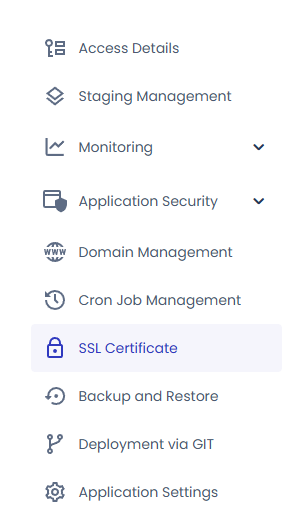
- In the left sidebar, click SSL Certificate.
- You’ll see the SSL Management panel.
Step 2: Select Let’s Encrypt
In the SSL Management panel:
- Make sure the dropdown at the top shows Let’s Encrypt – this should be the default option.
- You’ll see two fields below:
- Email Address – enter the email associated with your Cloudways account
- Domain Name – your domain should already be pre-filled here (e.g.
quickfixbase.com)
Step 3: Install the Certificate
- Double-check that your domain name is correct in the Domain Name field.
- Click Add Domain and enter the
wwwversion too (e.g.www.quickfixbase.com). Both names go on the same certificate. With Cloudflare on Full (Strict),wwwwon’t load without it. - Click Install Certificate.
You can skip Apply Wildcard. It covers every subdomain, but it needs an extra DNS record to verify, and most sites only use the domain and www.
Cloudways will contact Let’s Encrypt, verify your domain, and install the certificate automatically. This usually takes 20–30 seconds.
Step 4: Verify It’s Working
Once installed, open your site in a browser using your real domain. You should see:
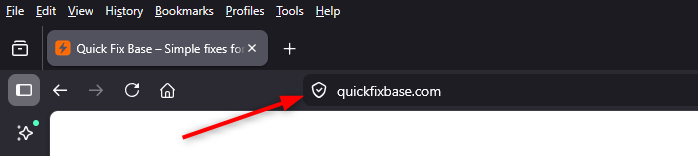
- HTTPS in the address bar
- A padlock icon – click it to confirm the certificate is valid
- No security warnings
If you’re using Cloudflare, make sure your SSL/TLS mode is set to Full (Strict) – this is required for the certificate to work correctly end-to-end. If it’s set to Flexible, you’ll likely get redirect loops.
Troubleshooting: Common SSL Issues
“Too many redirects” error after installing
Go to Cloudflare → SSL/TLS → Configure and switch to Full (Strict). Flexible mode causes redirect loops when a real certificate is installed on the server.
Certificate installation fails
Almost always a DNS issue. Your domain’s A record needs to be pointing to your Cloudways server IP before Let’s Encrypt can verify it. Check your DNS records in Cloudflare, or look them up with the DNS Lookup, which also warns if a CAA record blocks Let’s Encrypt. Wait a few minutes for propagation, then try again.
If DNS is fine, check Always Use HTTPS in Cloudflare (SSL/TLS → Edge Certificates). When it’s on, Let’s Encrypt’s check gets sent to HTTPS before your server has a certificate, and it fails. Turn it off, install the certificate, then turn it back on.
Site still showing as Not Secure after installation
Try clearing your browser cache with Ctrl+Shift+R (Windows) or Cmd+Shift+R (Mac). Also check that your WordPress Address and Site Address in Settings → General both use https:// not http://.
Certificate works on root domain but not www (Error 526)
The certificate doesn’t include www. Go back to SSL Certificate, add www.yourdomain.com with Add Domain and install again. Also check that Cloudflare has a CNAME record for www pointing to your root domain.
Does the Certificate Expire?
Yes – Let’s Encrypt certificates expire after 90 days, and Let’s Encrypt is shortening that to 45 days by 2028. Cloudways renews them automatically about 30 days before they expire, so you don’t need to do anything. To check, open SSL Certificate in Cloudways and look at the expiry date; there’s also a Renew Now button.
Final Thoughts
Honestly, SSL installation on Cloudways is one of the easiest parts of the whole setup. Two fields and a button. The part that trips people up is usually doing it before the DNS is properly pointed, which causes the verification to fail.
Connect your domain, wait for DNS to propagate, then come back for the certificate. That order matters – and if you follow it, this step is completely painless.