How to Connect a Domain to Cloudways (Step by Step)
So you’ve got your Cloudways server set up and WordPress installed – but your domain is still pointing nowhere. This is the part where a lot of beginners get stuck, mostly because of one thing: DNS records.
Don’t worry. It sounds more technical than it is. I’ll walk you through exactly what to do, with screenshots from my own setup.
This guide covers connecting a domain registered at Cloudflare to Cloudways – which is honestly the setup I’d recommend anyway. Cloudflare domains are cheaper than most registrars, and you’re going to want Cloudflare in front of your site for SSL and performance. So you might as well start there.
What You’ll Need Before You Start
- A domain registered at Cloudflare (or at another registrar with its DNS on Cloudflare – the DNS steps are the same)
- A Cloudways server with a WordPress application already created
- About 15 minutes
Quick Summary
| Step | What You’re Doing |
|---|---|
| 1. Copy server IP | Server → Master Credentials → copy Public IP |
| 2. Add domain | Application → Domain Management → + Add Domain |
| 3. Make primary | Three-dot menu → Make Primary |
| 4. Add DNS records | Cloudflare DNS: A record (@ → server IP) and CNAME (www → yourdomain.com), both Proxied |
| 5. Set SSL mode | Cloudflare → SSL/TLS → Configure → Full (Strict) |
| 6. Install certificate | Cloudways → SSL Certificate → Let’s Encrypt → domain + www → Install |
| 7. Wait and verify | Check domain in browser, verify with the DNS Lookup |
Step 1: Copy Your Cloudways Server IP Address
First, grab the IP address of your Cloudways server — you’ll need it when setting up DNS records.
- Log into Cloudways and click on your Server at the top.
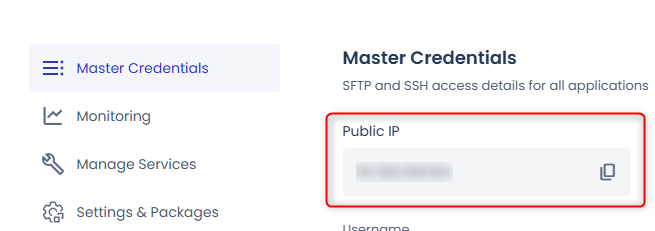
- On the server page, click Master Credentials in the left sidebar.
- You’ll see the Public IP address listed. Click the copy icon next to it.
Keep this handy — you’ll paste it into Cloudflare in a few steps.
Step 2: Add Your Domain in Cloudways
Before touching DNS, you need to tell Cloudways which domain will point to your application.
- In Cloudways, go to your Application and click Domain Management in the left sidebar.
- You’ll see your Domain List – currently showing only the temporary Cloudways URL as Primary.
- Click the + Add Domain button (top right).
- In the modal that appears, type your domain name – for example,
quickfixbase.com. - Leave “Add as Wildcard” unticked unless you need subdomain support.
- Click Save Changes.
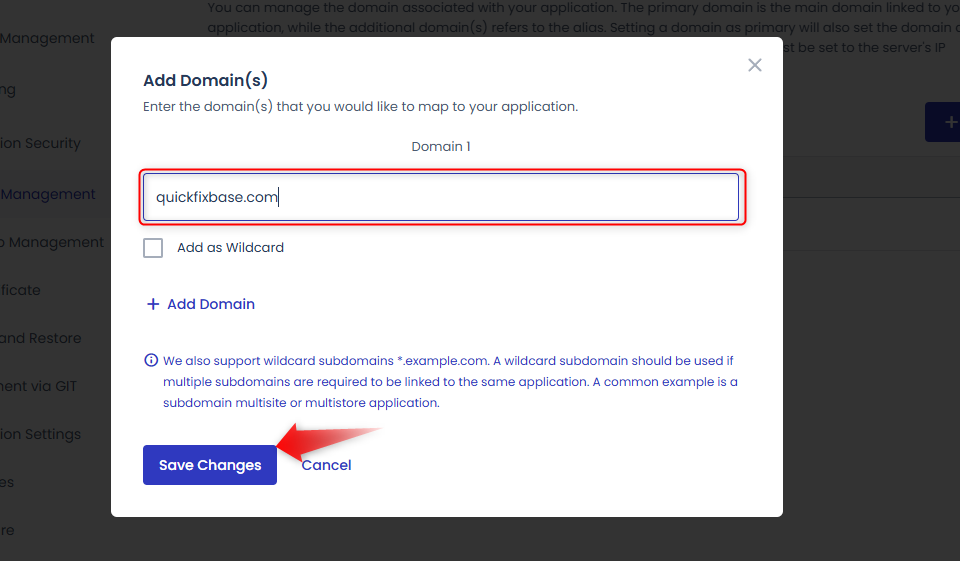
Your domain will now appear in the list tagged as Alias. That’s expected — you’ll fix that in the next step.
Step 3: Set Your Domain as Primary
The domain was added as an Alias – you need to make it the Primary domain. This is what tells Cloudways to use it as the main URL for your WordPress installation.
- Find your domain in the Domain List.
- Click the three-dot menu (⋮) on the right side of the row.
- Click Make Primary and confirm.
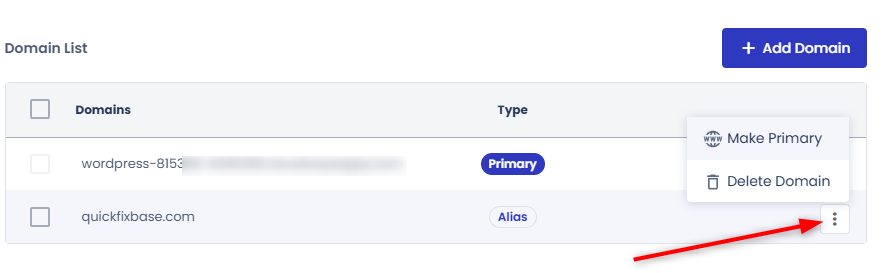
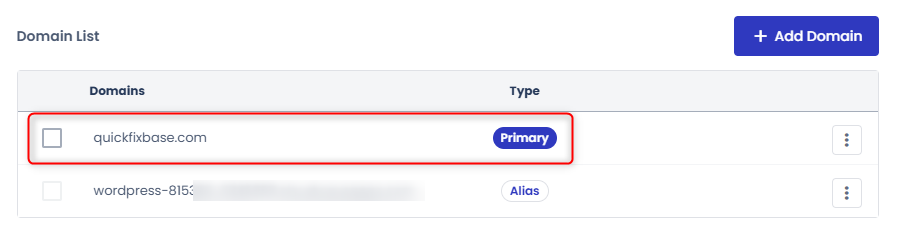
Your domain will now show as Primary and the temporary Cloudways URL will move to Alias.
Step 4: Add DNS Records in Cloudflare
Now go to your Cloudflare dashboard and select your domain. Click on DNS → Records.
You need to add two records – an A record and a CNAME record.
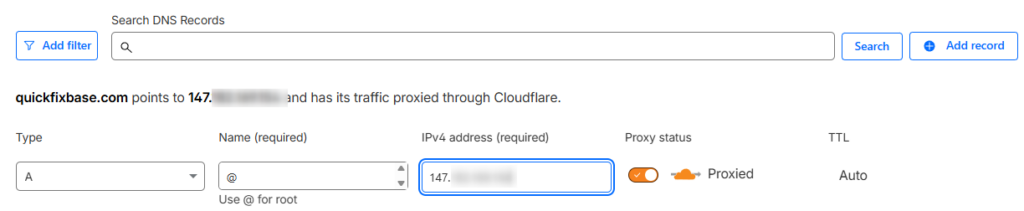
A Record (points your root domain to the server):
- Type:
A - Name:
@ - IPv4 address: (paste your Cloudways server IP here)
- Proxy status: Proxied (orange cloud — keep this on)
- TTL: Auto
- Click Save
CNAME Record (points www version to your root domain):
- Type:
CNAME - Name:
www - Target:
quickfixbase.com(your actual domain) - Proxy status: Proxied (orange cloud — keep this on)
- TTL: Auto
- Click Save

Once saved, both records show in the list with an orange cloud.
Step 5: Set SSL to Full (Strict) in Cloudflare
This step prevents redirect loops and makes sure traffic is encrypted all the way to your server – not just between the visitor and Cloudflare.
- In Cloudflare, go to SSL/TLS in the left sidebar.
- You’ll see the SSL/TLS Overview page showing the current encryption mode. Click Configure.
- Choose Custom SSL/TLS, then select Full (Strict).
- Click Save.
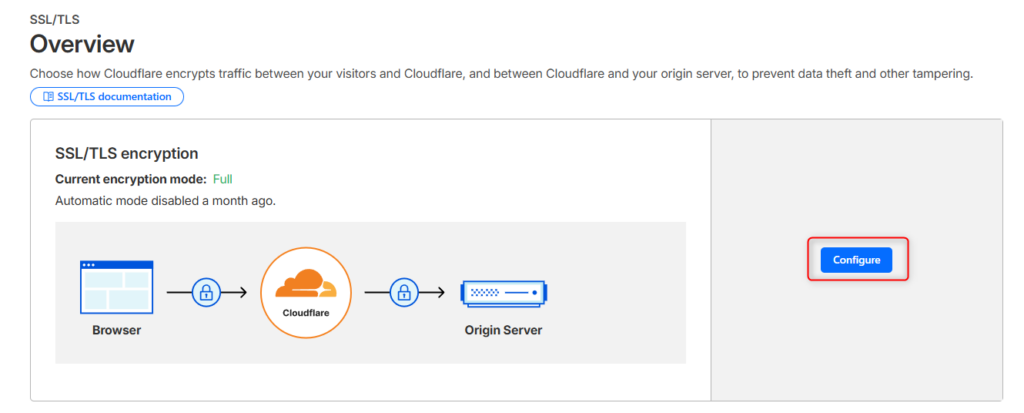
Don’t leave this on Flexible — it will cause redirect loops once SSL is installed on your server.
Step 6: Install SSL Certificate in Cloudways
This is the step most guides skip – and then people wonder why they’re getting SSL errors. Even though Cloudflare handles SSL between visitors and Cloudflare, you also need a certificate on the Cloudways server itself for Full (Strict) to work properly.
Cloudways makes this easy with a free Let’s Encrypt certificate.
- In your Cloudways Application, click SSL Certificate in the left sidebar.
- Make sure Let’s Encrypt is selected in the dropdown.
- Enter your Email Address.
- Your Domain Name should already be filled in – verify it shows your real domain.
- Click Add Domain and add the
wwwversion (e.g.www.quickfixbase.com), so the certificate covers both. - Click Install Certificate.
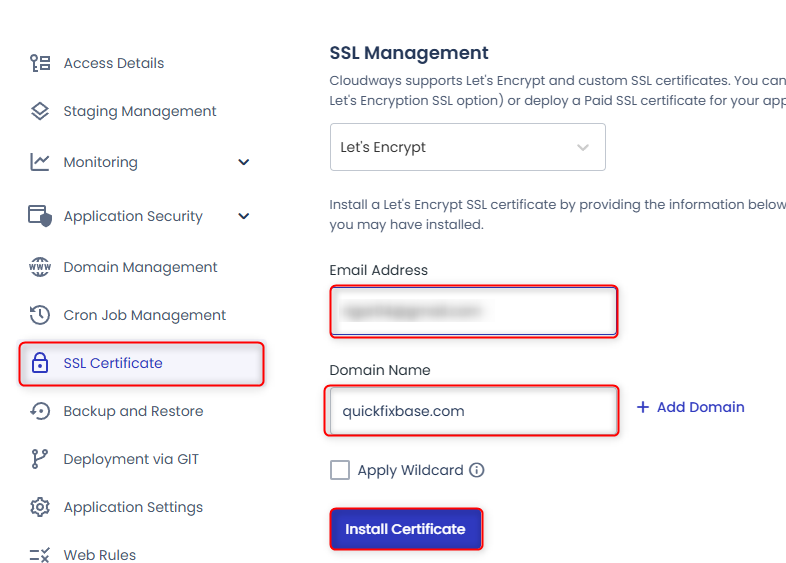
Cloudways will provision the certificate automatically. Takes about 30 seconds. If it fails, see the SSL guide’s troubleshooting.
Step 7: Wait for DNS Propagation
With Cloudflare, DNS propagation is usually very fast – often just a few minutes. Open your domain in a browser and check if it loads.
You can also check it with the DNS Lookup. With the records set to Proxied, it shows Cloudflare’s addresses instead of your Cloudways server IP. That’s expected: it means the domain is live through Cloudflare.
Troubleshooting: Common Issues
“Too many redirects” error
SSL setting issue. Go back to Cloudflare → SSL/TLS → Configure and make sure it’s set to Full (Strict), not Flexible.
Site not loading after an hour
Double-check your A record in Cloudflare. Make sure the IP address exactly matches what’s in Cloudways Master Credentials — no extra spaces.
www version not working
Check your CNAME record. The target should be your bare domain (quickfixbase.com), not www.quickfixbase.com. If www shows Error 526, the certificate doesn’t include it: add www in Step 6 and install again.
SSL certificate error in browser
Make sure you completed Step 6 – the Let’s Encrypt certificate needs to be installed on Cloudways, not just configured on Cloudflare.
Domain still showing as Alias in Cloudways
Go back to Domain Management, click the three-dot menu next to your domain and select Make Primary.
Final Thoughts
The two things that catch most people out: the domain starts as Alias and you have to manually make it Primary, and the Let’s Encrypt certificate needs to be installed on Cloudways too – not just configured on Cloudflare. Both are easy to miss if you’re following a guide that doesn’t show you the actual screens.
Take your time at the DNS step – double-check the IP address, make sure both records are set to Proxied, and set SSL to Full (Strict) before you do anything else. Get those three right and everything else falls into place.