How to Change Your WordPress Site Title and Tagline
When you first install WordPress, your site title is whatever you typed during setup (or a placeholder like “My WordPress Site” from your host’s installer), and the tagline is empty. Older sites still carry the old default tagline, “Just another WordPress site.” Not exactly inspiring – and not great for SEO either.
Changing them is simple, but finding where to do it isn’t obvious. It’s one of those settings you end up hunting around for – and then feel slightly silly when you find it, because it was in a pretty obvious place the whole time.
Here’s exactly where to find it and how to change it.
Quick Summary
| Method | Where to Go |
|---|---|
| Quickest way | Settings → General → Site Title + Tagline |
| With live preview (classic themes) | Appearance → Customize → Site Identity |
| With live preview (block themes) | Appearance → Editor → click the site title |
Why It Matters
Your site title and tagline show up in a few important places:
- Browser tab – the title appears at the top of the browser when someone visits your site
- Search results – Google often uses your site title in search listings
- RSS feeds – shown to anyone subscribing to your content
- Your theme’s header – many themes display the title and tagline prominently at the top of the site
The tagline is less critical than the title, but if your site still has “Just another WordPress site,” it looks unfinished and unprofessional. Worth changing on day one.
Method 1: Via WordPress Settings (Quickest Way)
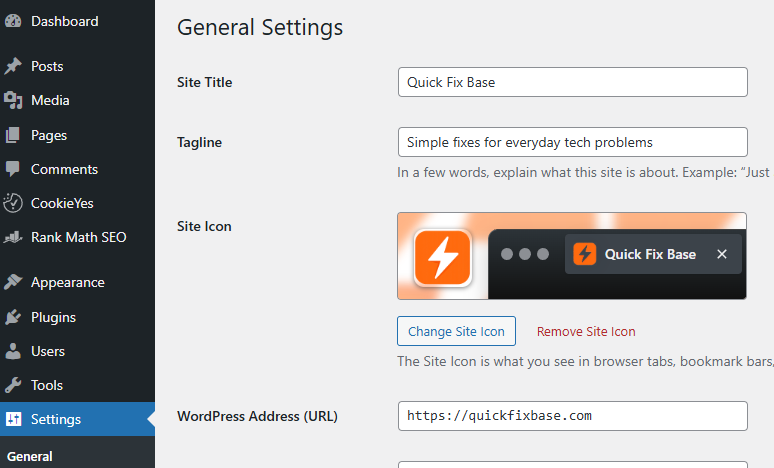
This is the most direct route.
- Log into your WordPress dashboard.
- In the left sidebar, go to Settings → General.
- At the top of the page you’ll see two fields:
- Site Title – this is your main site name (e.g. “QuickFixBase”)
- Tagline – a short description of what your site is about (e.g. “Simple fixes for everyday tech problems”)
- Update both fields.
- Scroll down and click Save Changes.
Done. Your new title and tagline are live immediately.
Method 2: Via the WordPress Customizer
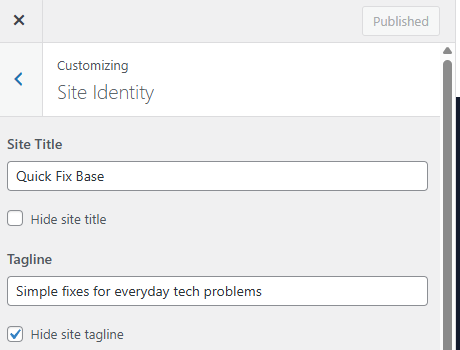
Some people find this route first, especially if they’re poking around the appearance settings.
- Go to Appearance → Customize.
- Click on Site Identity (usually near the top of the customizer panel).
- You’ll see the same Site Title and Tagline fields here.
- Make your changes – you’ll see a live preview on the right side of the screen.
- Click Publish to save.
Don’t see Appearance → Customize? Your theme is a block theme (like Twenty Twenty-Five), which hides the Customizer. Use Method 1, or go to Appearance → Editor, click the site title in the header, type the new one and click Save.
All of these change the same setting – use whichever you stumble across first.
What Makes a Good Site Title?
Keep it short, clear, and memorable. Ideally it should:
- Be the actual name of your site or brand
- Be easy to spell and remember
- Not be too long – 2-4 words is ideal
Avoid stuffing keywords into your site title. “Best WordPress Fixes Tips Tutorials Blog” looks spammy and won’t help your SEO. Just use your site name.
What Makes a Good Tagline?
Your tagline is a one-line description of what your site does. Think of it as a very short elevator pitch.
Good examples:
- “Simple fixes for everyday tech problems”
- “Beginner-friendly WordPress and hosting guides”
- “Home Wi-Fi, Windows, and WordPress – made simple”
Bad examples:
- “Just another WordPress site” (the old default – change this)
- “Welcome to my website” (says nothing)
- “Best tips tricks tutorials guides fixes help” (keyword stuffing)
If you genuinely can’t think of a good tagline, it’s also perfectly fine to leave it blank. Many sites do. Just don’t leave it as the default.
Does the Tagline Affect SEO?
Slightly – but not in the way most people think. Google doesn’t give your tagline special weight as a ranking signal. However, some themes display the tagline prominently on the homepage, and some SEO plugins use it as a fallback meta description.
More importantly, WordPress adds it to the browser tab title on your homepage (“Site Title – Tagline”), unless an SEO plugin overrides it. A clean, relevant tagline looks more professional than the WordPress default.
If you’re using Rank Math or Yoast, make sure your homepage SEO title and meta description are set there separately – those matter more for search results than the tagline.
Troubleshooting: Title Not Updating on the Site?
If you’ve saved the changes but the title still looks the same on the front end, try these:
- Clear your browser cache – press Ctrl+Shift+R (Windows) or Cmd+Shift+R (Mac) to force a fresh load
- Clear your caching plugin – if you’re using Breeze, WP Super Cache, or similar, clear the cache from the plugin dashboard
- Check your theme settings – some themes have their own site title setting that overrides the WordPress default. Look in Appearance → Customize → Site Identity, Appearance → Editor (block themes) or your theme’s dedicated settings panel.
Final Thoughts
This is one of the first things to change on any new WordPress site – right up there with deleting the default “Hello World” post. Thirty seconds of work. Makes your site look intentional instead of freshly unboxed.
Settings → General. Now you know.
Setting up a brand new WordPress site? The hosting and WordPress guides cover the next steps.