How to Install a WordPress Plugin (Step by Step)
Plugins are what make WordPress genuinely powerful. They add features to your site without you needing to write a single line of code — things like SEO tools, contact forms, caching, backups, and a lot more.
Once you know where to go, installing one takes about 60 seconds. Here’s exactly how.
What Is a WordPress Plugin?
Think of plugins like apps on your phone. Your phone works fine out of the box, but you install apps to add features you actually want. WordPress is the same – it’s functional on its own, but plugins let you extend it to do whatever your site needs.
There are over 70,000 free plugins in the official WordPress directory. Paid ones exist too – but honestly, for most things when you’re starting out, free is completely fine.
Method 1: Install a Plugin From the WordPress Dashboard (Most Common)
This is the easiest way and works for any plugin listed in the official WordPress directory.
- Log into your WordPress admin dashboard (go to
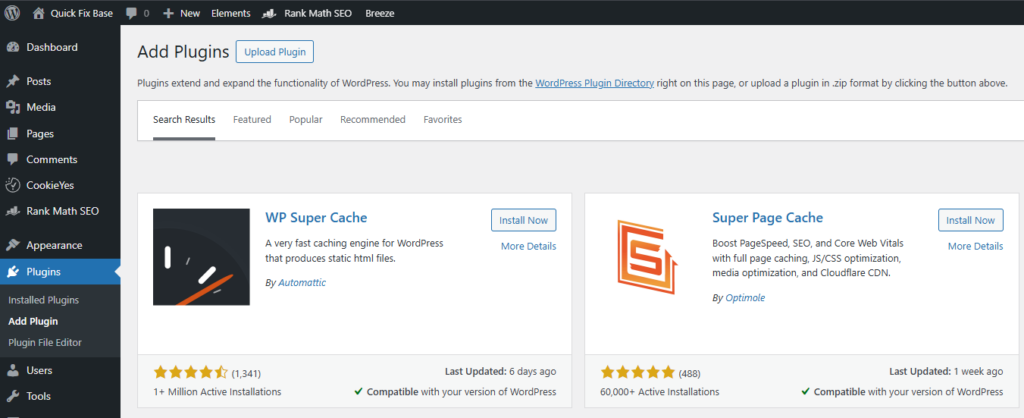
yoursite.com/wp-admin). - In the left sidebar, click Plugins → Add Plugin.
- You’ll see a search bar at the top right. Type the name of the plugin you’re looking for – for example, “Rank Math” or “WP Super Cache”.
- Find the plugin in the results. Look for the right name and author, and check the active installation count — a plugin with 1 million+ installs is generally a safe bet.
- Click Install Now.
- Once it installs, the button changes to Activate. Click it.
That’s it. The plugin is now installed and running on your site.
Method 2: Upload a Plugin Manually (For Premium or Downloaded Plugins)
If you’ve bought a premium plugin or downloaded a .zip file from a developer’s website, you can’t search for it in the dashboard. You upload it instead.
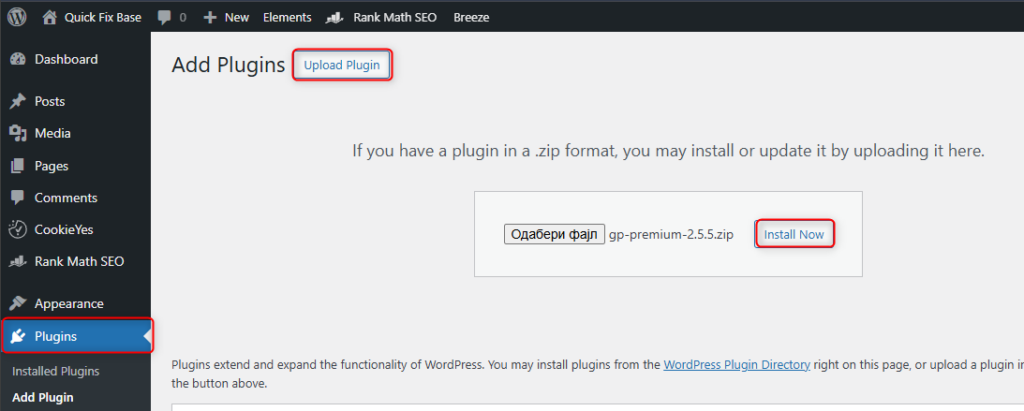
- Go to Plugins → Add Plugin (older WordPress versions call it Add New).
- Click the Upload Plugin button at the top of the page.
- Click Choose File and select the .zip file from your computer.
- Click Install Now.
- Click Activate Plugin once it’s done.
Same result – the plugin is installed and active.
Method 3: Install via FTP (Advanced – Rarely Needed)
If your WordPress dashboard isn’t accessible, or a .zip is too big to upload, you can install plugins by uploading the files directly to your server via FTP. This is an edge case most beginners will never need – but good to know it exists.
- Unzip the plugin folder on your computer.
- Connect to your server using an FTP client like FileZilla.
- Navigate to
wp-content/plugins/. - Upload the unzipped plugin folder there.
- Go back to your WordPress dashboard → Plugins and activate it from the list.
After Installing: Should You Activate Every Plugin?
Yes – installing a plugin doesn’t do anything until you activate it. Installing and activating are two separate steps, and WordPress won’t let you skip activation.
Once activated, most plugins add a new item to your sidebar menu or Settings area where you can configure them.
How Many Plugins Is Too Many?
This is something a lot of beginners wonder about. Honestly – it’s not really about the number. It’s about the quality.
Ten well-coded plugins will slow your site down less than two poorly-coded ones. That said, there’s no reason to keep plugins you’re not using – deactivate and delete anything you installed to test and decided against.
A good rule of thumb for a new site: install only what you actually need. You can always add more later.
Essential Plugins Worth Installing First
If you’re just getting started, here’s what I’d install on any new WordPress site:
- Rank Math – SEO. Helps your site show up in Google.
- GenerateBlocks – page builder blocks if you’re using the GeneratePress theme.
- Breeze (if you are on Cloudways) – caching plugin made specifically for Cloudways, makes your site load faster.
- ShortPixel – compresses your images automatically so they don’t slow the site down.
- UpdraftPlus – backups. Set it and forget it. You’ll be glad it’s there if something ever goes wrong.
Troubleshooting: Common Plugin Issues
Plugin installed but nothing changed?
Make sure you clicked Activate after installing. A lot of people miss this step.
Site broke after installing a plugin?
Deactivate the plugin immediately. Go to Plugins → Installed Plugins, find it, and click Deactivate. If you can’t access the dashboard, rename the plugin folder via FTP or your hosting file manager – this forces it to deactivate.
“The link you followed has expired” error when uploading?
Older WordPress versions say “Are you sure you want to do this?” instead. Either way, your .zip file is probably larger than your server’s upload limit. Install it via FTP instead (Method 3 above), or ask your host to raise the PHP upload limits (upload_max_filesize and post_max_size).
Can’t find the plugin after installing?
Check your sidebar – most plugins add a menu item there. Others are under Settings or Tools. A few only show up inside another menu area.
Quick Summary
| Method | When to Use |
|---|---|
| Search & install from dashboard | Free plugins from WordPress.org |
| Upload .zip file | Premium or downloaded plugins |
| FTP upload | When dashboard access isn’t available |
Final Thoughts
Installing plugins is one of those things that sounds more complicated than it is. You do it once and think – wait, that’s it? Two clicks and it’s done.
The more important habit is being selective about what you install. Every plugin adds a little weight to your site. Keep it lean, keep it purposeful. Your site will thank you.