Files Hidden on USB Drive? Here’s How to Get Them Back
You plug in your USB drive and something’s off. The files are gone – or what you see is a single suspicious shortcut sitting there where your folders used to be. The drive shows space is being used, but nothing’s there. Or nothing useful, anyway.
This is a virus. A pretty common one, actually. It hides all your files, marks them as system files, and replaces them with shortcut files that spread the infection to the next computer the drive gets plugged into. I’ve seen it go through multiple USB drives at work – same symptoms every time.
The good news: your files are almost certainly still there. Hidden, not deleted. Here’s how to get them back.
What’s Actually Happening
The virus – sometimes called the FAT32 virus or shortcut virus – doesn’t delete your files. It changes their attributes to hidden and system, making them invisible in Windows Explorer. Then it creates .lnk shortcut files that look like your folders to trick you into clicking them and spreading the infection further.
So before you panic – the files are there. You just can’t see them yet. That’s fixable.
What You’ll Need
- Your infected USB drive
- Access to Command Prompt (built into Windows – no downloads needed)
- About 10 minutes
Step 1: Check What Drive Letter Your USB Is
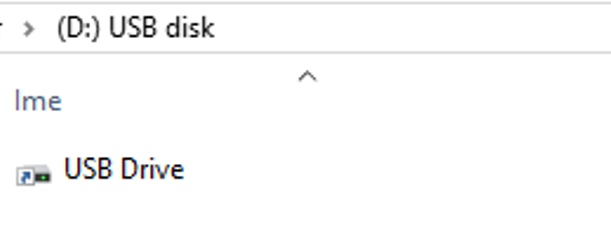
Plug in your USB drive and open File Explorer. Look in the left sidebar under “This PC” and note the drive letter assigned to your USB – in my case it was D:. Yours might be E:, F:, G: or something else.
Write it down. You’ll need it for the command in Step 3.
Don’t open the shortcut. Double-clicking it runs the virus and spreads it to your computer.
Step 2: Open Command Prompt as Administrator
- Press the Windows key, type cmd.
- Right-click on Command Prompt and select Run as administrator.
- Click Yes if prompted.
Step 3: Run the Attrib Command
This is the command that removes the hidden and system attributes from all your files and folders, making them visible again.
Type the following command – replacing d: with your actual drive letter:
attrib -h -r -s /s /d d:\*.*Press Enter.
If your USB drive is D:, you can copy the command and paste it with Ctrl+V. Double-check the letter first, and never run it on C:, your Windows drive.
It runs silently – no progress bar, no confirmation. When it’s done the cursor just drops to the next line. That’s completely normal, don’t worry.
What this command does:
-hremoves the hidden attribute-rremoves the read-only attribute-sremoves the system attribute/sapplies to all files in all subfolders/dapplies to folders as well as filesd:\*.*targets everything on the D: drive
Step 4: Check Your USB Drive
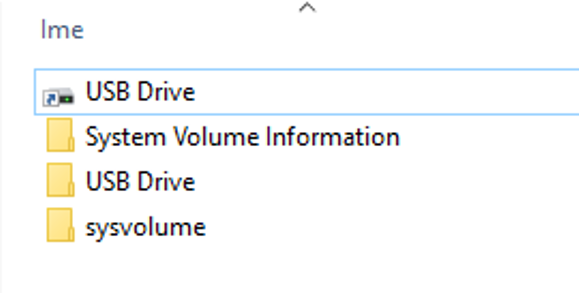
Go back to File Explorer and open your USB drive. Your files and folders should now be visible. You may also see folders like System Volume Information. That’s normal; leave them alone.
If you still don’t see your files, turn on hidden items in File Explorer:
- Windows 11: click View → Show → Hidden items
- Windows 10: open the View tab and tick Hidden items
Step 5: Copy Your Files Off the Drive
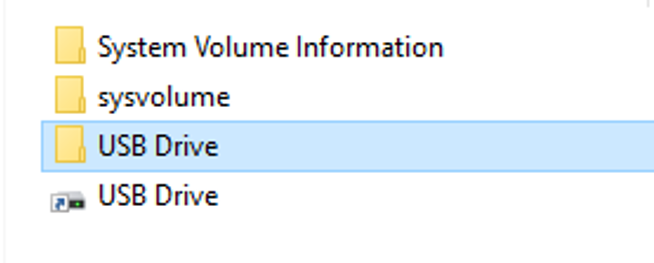
Don’t stop here though. The virus is still on the drive – you’ve only made your files visible again, not actually cleaned anything.
Copy your recovered folders to your computer – not the shortcuts, just the actual folders with your real files inside. Right-click → Copy → paste them somewhere safe on your hard drive.
Check the copied files open correctly before doing anything else.
Step 6: Format the USB Drive
Once your files are safely copied off, format the drive completely. This wipes everything – the virus, the shortcuts, the hidden system files – and gives you a clean drive.
- Open File Explorer → right-click your USB drive → Format
- File system: FAT32 for drives of 32 GB or less, exFAT for larger ones (Windows doesn’t offer FAT32 above 32 GB, and exFAT works on Macs too)
- Make sure Quick Format is ticked
- Click Start
After formatting, copy your recovered files back onto the drive. Clean drive, files intact.
Step 7: Scan for Malware
The USB was infected – which means any computer it was plugged into may have been exposed too. Run a full malware scan on your PC to make sure nothing transferred across.
Microsoft Defender is built into Windows, so start there:
- Open Windows Security (search for it in the Start menu)
- Click Virus & threat protection → Scan options
- Select Full scan and click Scan now
- Remove anything it finds
For a second opinion, the free version of Malwarebytes works well: download it from malwarebytes.com, install it and click Scan (it runs a Threat Scan).
Why This Keeps Happening at Work
If multiple USB drives at your workplace are showing the same symptoms, the infection is spreading from a shared computer — likely one that’s already infected. Every time someone plugs a clean USB into that machine, it gets hit too.
The fix: identify which computer is spreading it, run a full malware scan on that machine, and make sure everyone’s USB drives are cleaned before being used again. A full scan with Microsoft Defender or Malwarebytes on the source computer usually clears it.
Quick Summary
| Step | What You’re Doing |
|---|---|
| 1. Check drive letter | Note your USB’s letter (D:, E:, F: etc.) |
| 2. Open CMD as admin | Windows key → cmd → Run as administrator |
| 3. Run the attrib command (change d: to your drive letter) | attrib -h -r -s /s /d d:\*.* |
| 4. Check files | Your folders should now be visible |
| 5. Copy files off | Save them to your PC before anything else. Don’t copy the shortcut |
| 6. Format the drive | Wipe it completely, then copy files back |
| 7. Scan for malware | Run a Microsoft Defender full scan on your PC |
Final Thoughts
The shortcut virus is one of those things that looks catastrophic – all your files seemingly gone – but is almost always recoverable. One command in CMD and they’re back.
The part most guides skip is the format. Don’t just recover the files and carry on as if nothing happened. Copy them off, wipe the drive, copy them back. That’s the only way to know for sure the drive is clean.